




.thumb.png.82908c3678f30e5842c981302df4b424.png)
📝 Description:
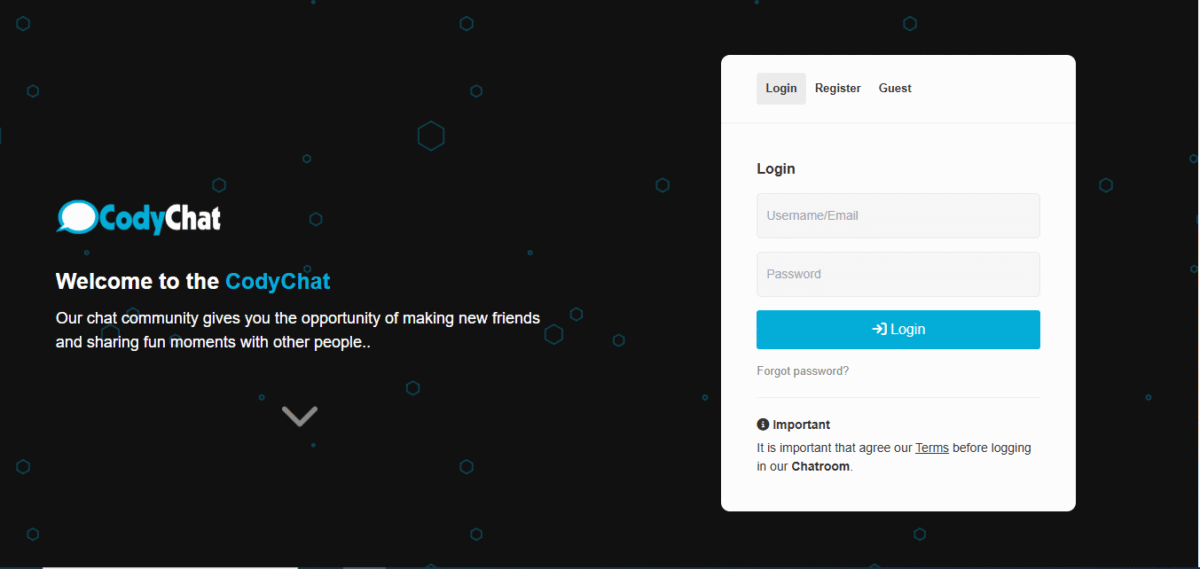
Bring a fresh, modern and stylish look to your CodyChat with Groot Theme.
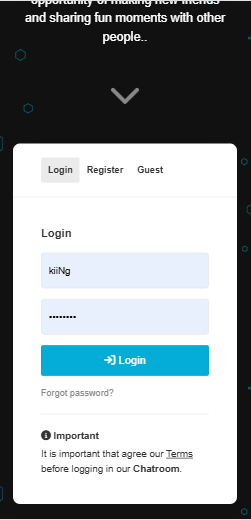
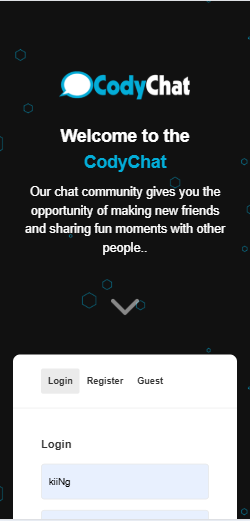
Designed by kiiNg, Groot offers a clean, responsive, and user-friendly interface that works flawlessly on desktop, tablet, and mobile devices.
Whether you are running a small chat community or a large social chatroom, Groot ensures smooth performance and an elegant design experience.
This theme is carefully crafted to enhance user engagement, improve readability, and give your chatroom a professional yet fun vibe.
🌟 Features:
✅ Responsive Design – 100% mobile-friendly layout (desktop, tablet & mobile).
🎨 Modern UI – Sleek and minimal design with fresh colors and smooth layout.
⚡ Fast & Lightweight – Optimized for speed and performance.
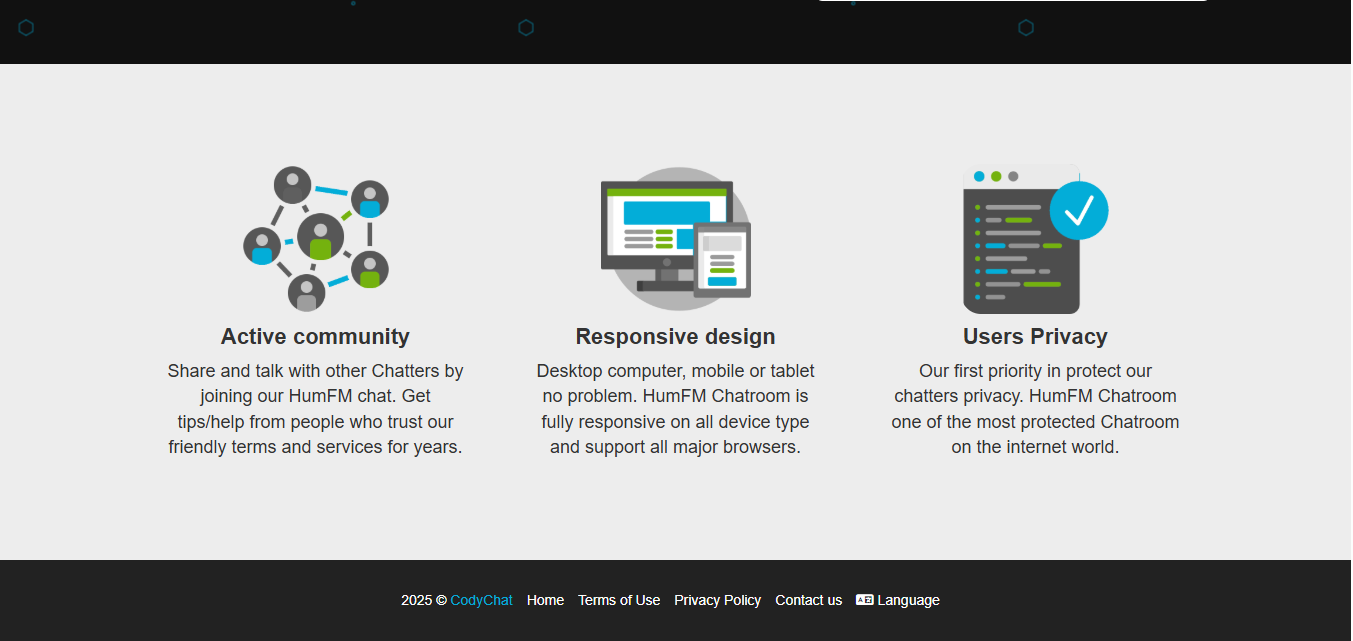
🖼 Custom Styling – Unique login page, footer, and icon styles for a professional look.
🔒 Privacy Focused Layouts – Clear sections for privacy, terms, and policies.
🌍 Multi-Version Support – Works with CodyChat 6.0, 7.0, and 8.0.
👥 User-Friendly Experience – Clean navigation, better readability, and structured sections.
🛠 Easy Integration – Simple upload and apply process.
📂 Details:
Theme Name: Groot
Author: kiiNg
Supported Versions: CodyChat 6.0, 7.0, 8.0
Compatibility: Desktop + Mobile Responsive
👉 Perfect for chatroom owners who want to give their community a modern, professional, and attractive design.
What's New in Version 1.0.0
Released
No changelog available for this version.
Create an account or sign in to leave a review
There are no reviews to display.